
Turn AI summaries into PDF reports
Use structured AI output and one Handlebars template to export a PDF report and create a PNG preview.
A weekly support handoff records what changed and what the next person should do. A model can draft that handoff from ticket notes. Doczilla can render the reviewed draft using the same HTML template each week, so everyone gets a report with a familiar layout.
Ask the model for structured data
Give the model the ticket notes and ask it for a title, a short summary, and a list of next steps. Ask it to use details from the notes. Review the draft and save the JSON as report.json. You can also run the example with this sample.
{
  "title": "Weekly support handoff",
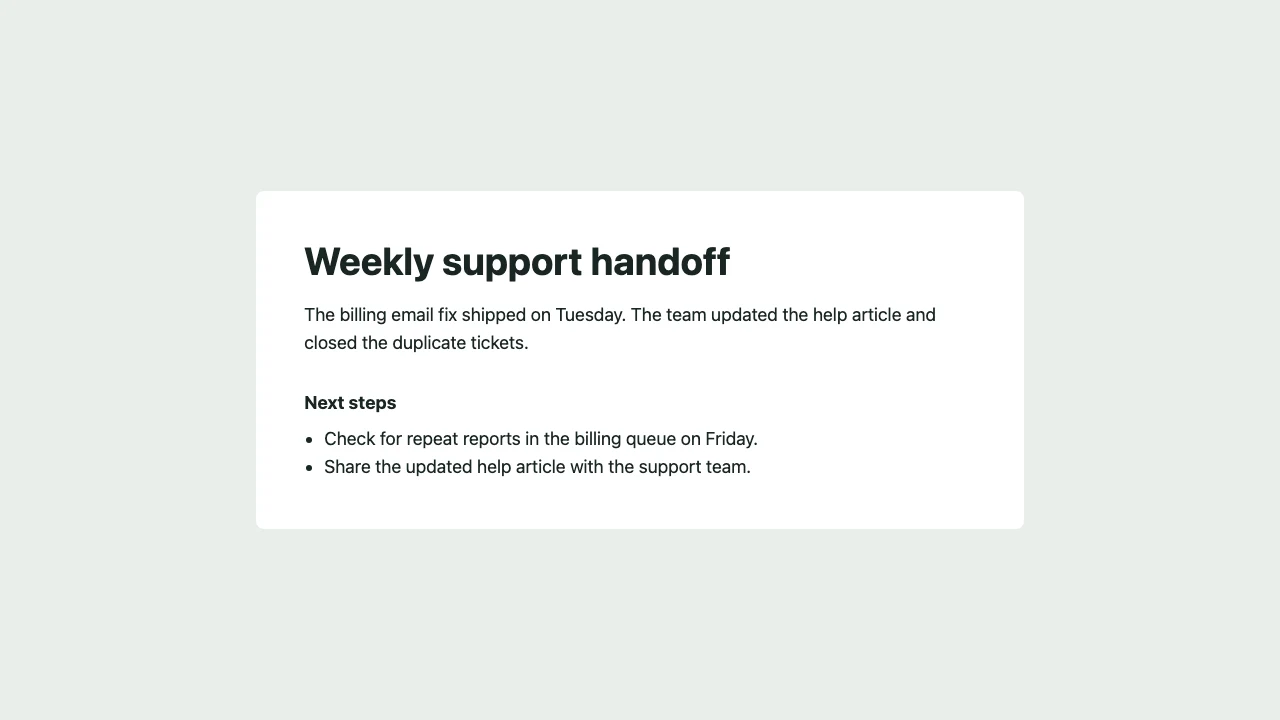
  "summary": "The billing email fix shipped on Tuesday. The team updated the help article and closed the duplicate tickets.",
  "nextSteps": [
    "Check for repeat reports in the billing queue on Friday.",
    "Share the updated help article with the support team."
  ]
}
Export the report as a PDF
Save this script as export-report.mjs next to the JSON file. Set DOCZILLA_API_KEY in your server environment. Get a key through the API quickstart.
Send the layout as Base64-encoded HTML and pass the report in page.templateData. The double braces in the Handlebars template escape the report values so they render as text.
import { readFile, writeFile } from 'node:fs/promises'

const apiKey = process.env.DOCZILLA_API_KEY
if (!apiKey) throw new Error('Set DOCZILLA_API_KEY first')

const reportFile = new URL('./report.json', import.meta.url)
const report = JSON.parse(await readFile(reportFile, 'utf8'))

const template = `<!doctype html>
<html lang="en">
<meta charset="utf-8">
<title>{{title}}</title>
<style>
  body { margin: 0; color: #192623; font: 18px/1.55 system-ui, sans-serif; }
  main { max-width: 42rem; margin: auto; padding: 3rem; }
  h1 { margin: 0 0 1rem; font-size: 2.4rem; line-height: 1.15; }
  h2 { margin: 2rem 0 0.5rem; font-size: 1.125rem; }
  ul { margin: 0; padding-left: 1.25rem; }
  @media screen {
    body { display: grid; min-height: 100vh; place-items: center; background: #e9efeb; }
    main { margin: 1.5rem; background: white; border-radius: 0.5rem; }
  }
</style>
<main>
  <h1>{{title}}</h1>
  <p>{{summary}}</p>
  <h2>Next steps</h2>
  <ul>{{#each nextSteps}}<li>{{this}}</li>{{/each}}</ul>
</main>
</html>`

const page = {
  htmlTemplate: Buffer.from(template, 'utf8').toString('base64'),
  templateData: report
}
const preview = process.argv[2] === 'png'
const endpoint = preview ? 'screenshot' : 'pdf'
const filename = preview ? 'support-handoff.png' : 'support-handoff.pdf'
const options = preview
  ? { screenshot: { type: 'png', fullPage: true, viewport: { width: 1280, height: 720 } } }
  : { pdf: { format: 'a4' } }

const response = await fetch('https://api.doczilla.app/v1/' + endpoint, {
  method: 'POST',
  headers: {
    Authorization: 'Bearer ' + apiKey,
    'Content-Type': 'application/json'
  },
  body: JSON.stringify({ page, ...options })
})

if (!response.ok) throw new Error('Doczilla returned HTTP ' + response.status)
await writeFile(filename, Buffer.from(await response.arrayBuffer()))
Run node export-report.mjs to save support-handoff.pdf in your working directory.
Review a screenshot of the report
Run node export-report.mjs png to render the same data and template as a PNG. Use it to check how long titles and lists wrap on screen. If your model accepts images, you can ask it to point out any clipped text or overlapping elements in the preview. Open the PDF for a final check of page breaks and print margins.
Give your coding assistant the API docs
Ask your assistant to adapt the script to a server route or background job in your app. For request options and endpoints, point it to Doczilla’s plain-text documentation index.
Find a copyable prompt on the AI workflows page.